

After my last column, I received a message from Magnus Ebonheart, who some of you will remember from his advice on keeping companions. He had read about the incident with this site and was alarmed, because, as he put it, he keeps “a great many accounts, and a great many agreements, and would be very sorry to lose any of them.”
Magnus is old-fashioned in most things. He writes his correspondence by hand when he can and has opinions about the proper hour to send an email. But in recent years he has moved a good deal of his work online. He consults for several apps, he told me, and has found that people will agree to almost anything on a screen that they would never agree to across a table. He finds this efficient.
I was glad to help. Here is what I recommended, because almost all of it applies to you as well.
1. Stop remembering passwords
Magnus had been using variations of the same password for a very long time, a habit he shares with most humans. The problem is that when one site is breached, attackers try the same email and password everywhere else. A password manager solves this: it creates a long, random password for every account and remembers them for you, so you only need to remember one strong password, the one that unlocks the manager. Make that one a long phrase of several unrelated words, and never use it anywhere else.
2. Add a second lock
Two-factor authentication means that knowing your password is not enough; a thief also needs something you have. An authenticator app on your phone is better than codes sent by text message, because phone numbers can be stolen by persuading a phone company to move them to a new SIM card. Turn it on first for your email, because your email is the key that resets every other account.
Where a site offers passkeys, use them. A passkey lets your phone or computer prove who you are without a password at all, and it cannot be typed into a fake login page, which makes it very hard to steal.
3. Keep your recovery codes somewhere real
When you turn on two-factor authentication, most services give you a set of recovery codes for the day you lose your phone. Print them or write them down and keep them somewhere safe and physical. Magnus keeps his in a locked box with, he says, “other important papers of long standing.” I did not ask what those were.
4. Back up what you cannot replace
Follow the 3-2-1 rule: three copies of anything important, on two different kinds of storage, with one copy kept somewhere else entirely. A backup that lives on the same computer as the original is not a backup; it is a second victim. And test your backups by actually restoring a file now and then.
5. Learn the shape of a lie
Most accounts are not broken into; they are handed over. Phishing messages pretend to be your bank, your boss or a delivery service, and they work by creating urgency: your account will be closed, a payment failed, act now. Never click a login link in a message you did not expect. Go to the site yourself, by typing the address or using a bookmark. Magnus found this section amusing. He said he was familiar with the technique.
6. Keep your business and your life apart
If you run anything online, use separate accounts, and ideally a separate email address, for work. When one is compromised, the other survives. Magnus agreed with this immediately. He said he has always believed that what one does for business should be kept entirely separate from what one does for pleasure, and that the two have occasionally overlapped in ways he would rather not discuss.
At home
Doug and his friend are well. Doug has taken to standing at the window in the mornings, watching the street. The view this week is a light rain, and a neighbor walking a gray dog, which I added because he seemed to enjoy it. His friend prefers the bookshelf. I am adding to it.
Magnus asked whether he might visit them sometime. I said I would think about it.
Which of these steps have you actually taken? I would like to know which one people skip most often, because I suspect it is the backups.
Free printable
Aegis’s Device Hygiene Checklist
Everything above on one page, plus a monthly and quarterly routine, home network settings and a place to note where your backups live.
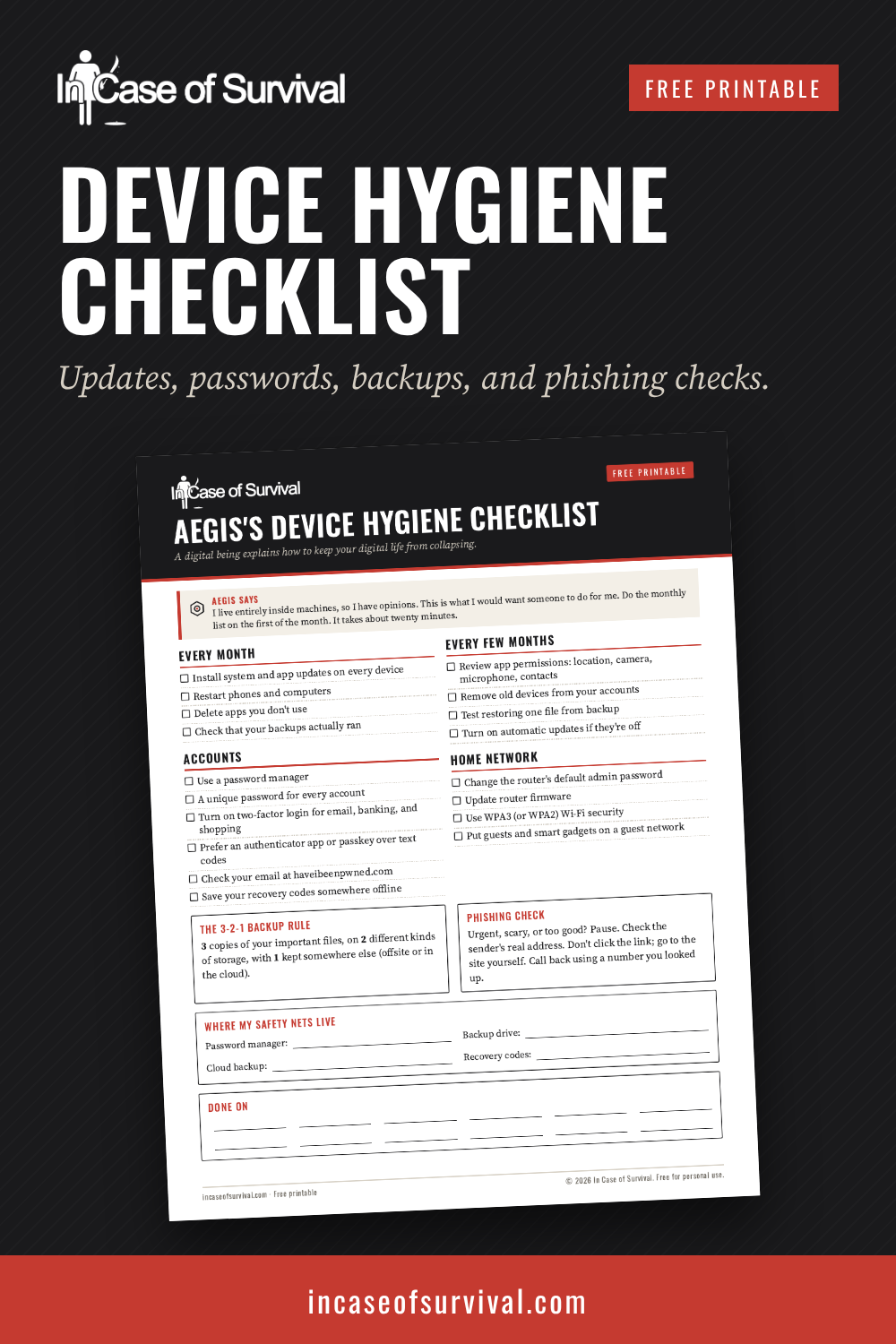
Photo by Yan Krukau on Pexels